Getting started with Keeti
· Keeti 1.7 · macOS 14 or later, Apple Silicon Mac · ten minutes read
Keeti listens to your meeting and hands you, at the end, written notes and the list of things to do. All you have to press is a keyboard shortcut. This guide shows you how, with real screenshots of the app. Allow ten minutes of reading, once and for all.
1 · What Keeti does, and what it does not
One rule to remember: Keeti records what your Mac's microphone hears. Everything else follows from that.
What it does
- It records a meeting in a room, using the Mac's microphone.
- It works on video calls too, as long as the sound comes out of the speakers. Remote people are then audible in the room, so it hears them.
- It writes down everything that was said, on your computer. No internet needed for that part: it works on a plane.
- It works out who is speaking and puts the right name against each sentence.
- It writes the notes and pulls out the list of action items.
- It fetches the meeting title and the guest list from your calendar, so you do not have to type them.
What it does not do
- It hears nothing that goes through headphones. If you are wearing a headset, it records only you, and the notes will read like a monologue.
- It does not join your video call and does not appear in the meeting. Nobody can see it is there.
- It never starts on its own. Nothing is recorded until you start it yourself.
On a video call, put the sound on the speakers. That really is the only thing to remember. A meeting listened to on speakers gives notes just as good as a meeting in a room.
And mind the volume: if you can barely hear someone, Keeti will barely hear them too.
2 · The first time you open it
Four screens, two minutes. Everything is set up there. You will not have to go hunting through the settings afterwards.
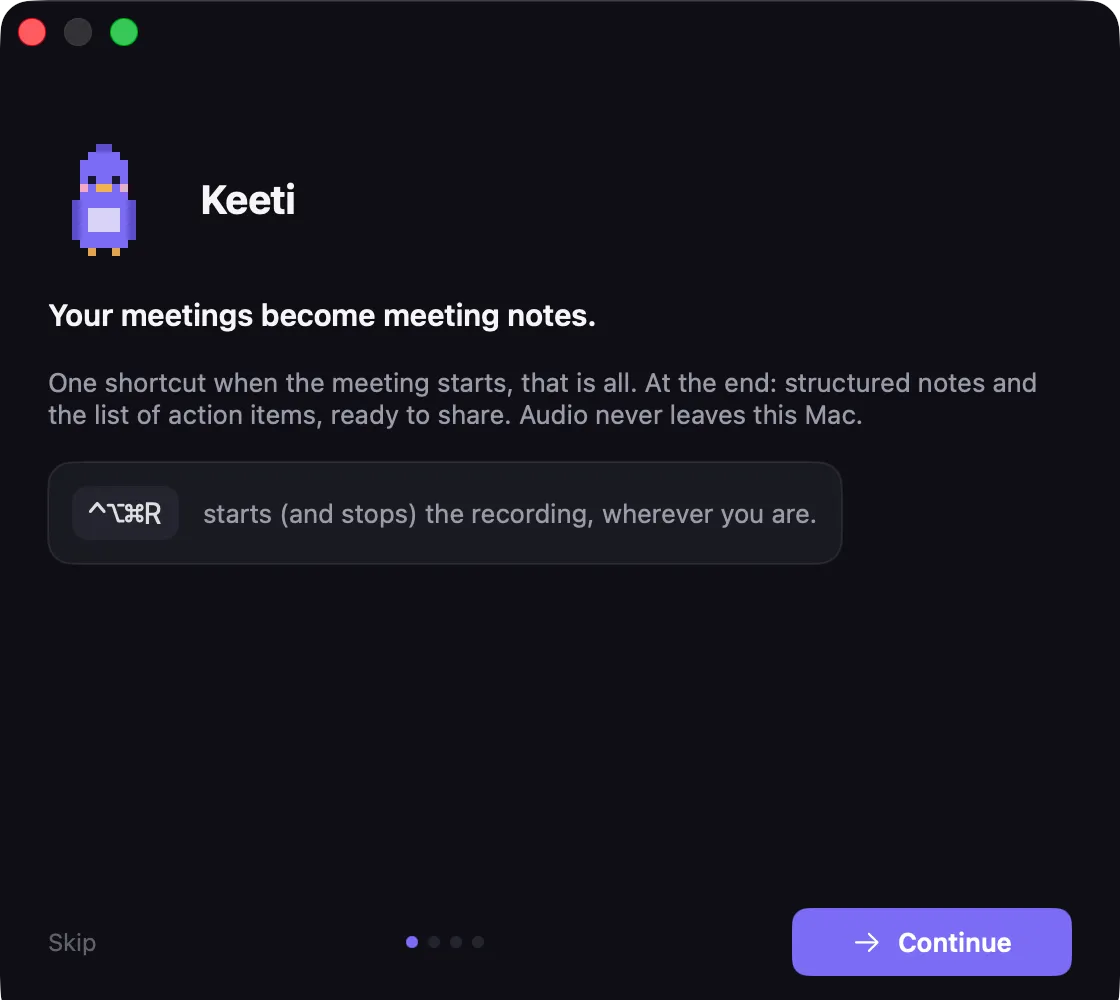
Welcome
An introduction screen, nothing to do. Just note the keys shown in the middle: that is what you will press to start a meeting, every day.
Permissions, and your calendar
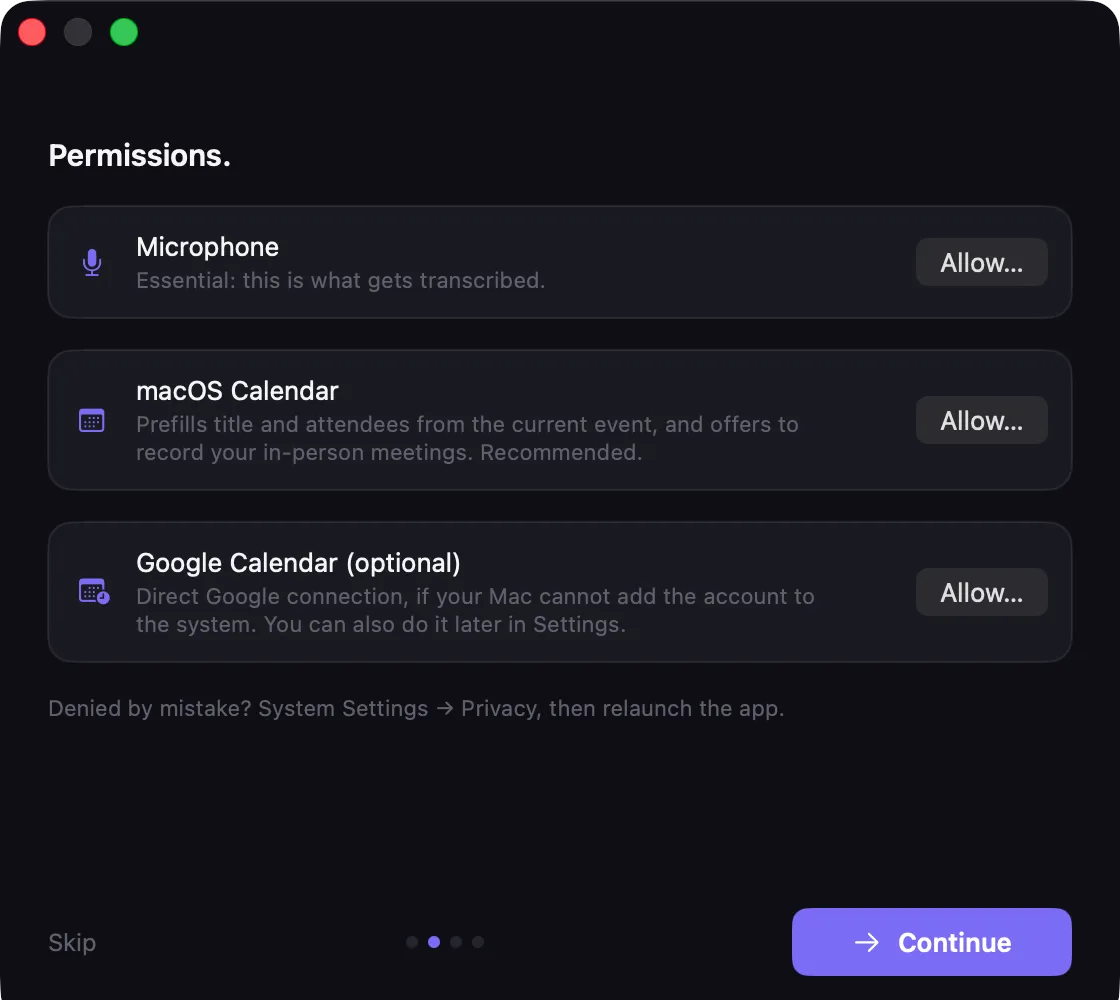
Your Mac protects the microphone and the calendar: you have to tell it Keeti is allowed to use them. One click on each button and it is done.
Microphone: required, it is what Keeti listens to.
Calendar: strongly recommended. It is what lets Keeti know the title of your meetings and
who is attending, and offer to record at the right moment.
Google Calendar: useful if your work calendar does not show up in your Mac's Calendar app.
Keeti reads it read-only, and only sees upcoming events.
It learns your voice
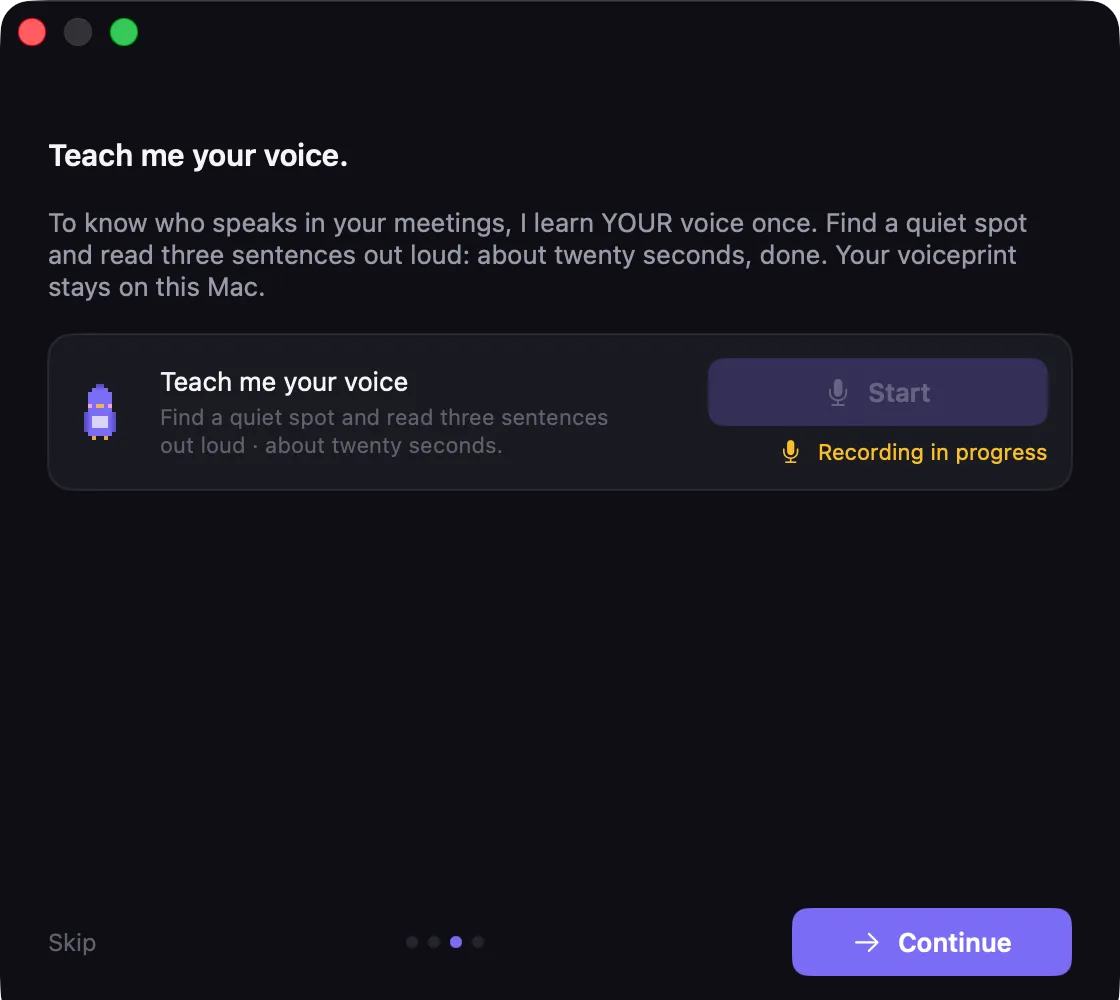
You read three sentences out loud, which takes about twenty seconds. Keeti remembers the sound of your voice, and will then be able to recognise you in your meetings.
This is the small gesture that improves the notes the most. Find somewhere quiet. What it remembers is protected and never leaves your Mac.
Access to the AI that writes the notes
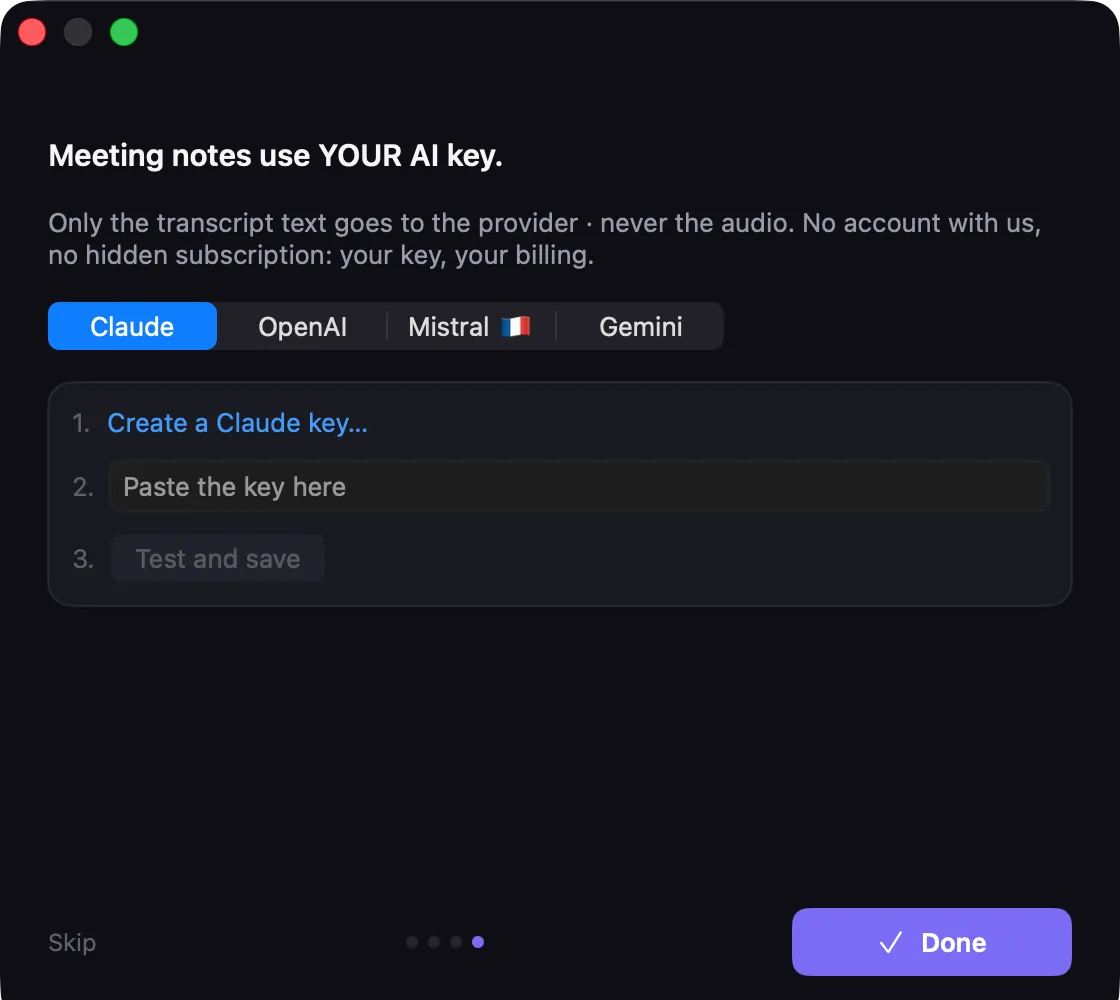
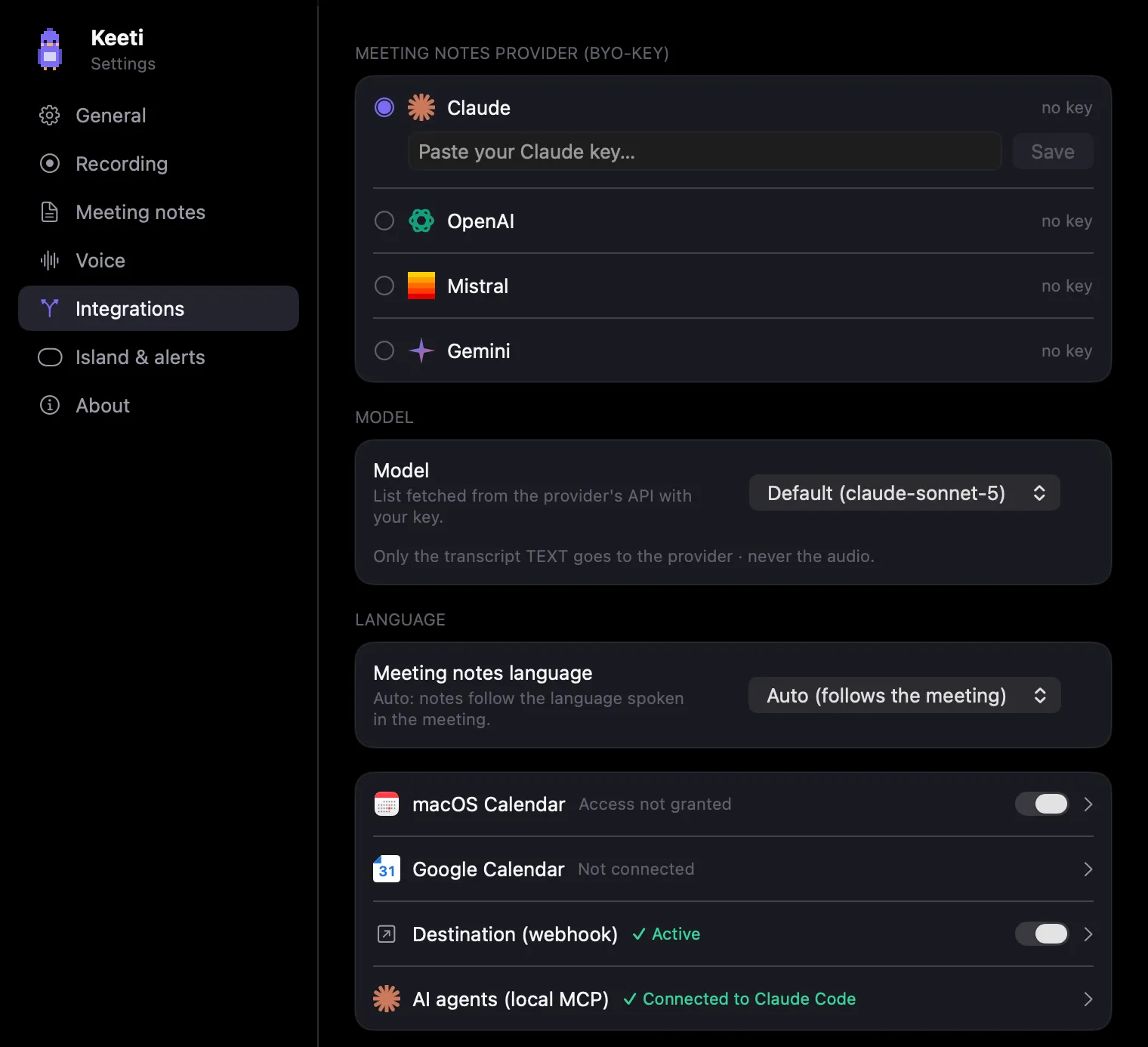
Keeti transcribes on its own, on your Mac. But to actually write proper notes it goes through an artificial intelligence, so it needs access to one. That access is called a key: a long string of characters that identifies you to the provider.
The screen walks through the three steps in order: the Create a key link opens the provider's page, you paste the key you got into the field, and the Test and save button checks straight away that it works.
There is no Keeti account and no subscription. You pay the provider directly for what you use, on the order of a few cents for a one-hour meeting. You can also pick a provider other than the default one: the four tabs at the top of the screen are equivalent.
Clicked “Skip”? No harm done. Everything is in the settings: permissions and calendar under Integrations, your voice under Voice, the key under Notes.
3 · A meeting, from start to finish
Everything happens in a small black window at the top of the screen, around the notch. There is no app to open and no window to manage.
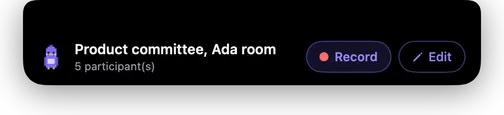
Keeti offers to record
When a meeting from your calendar starts, it offers by itself at the top of the screen. The title and the number of attendees are already filled in. You click Record and you are off.
You can also start at any moment with ⌃ ⌥ ⌘ R, even for a meeting that is not on the calendar.
You tell the others, and say how many of you there are
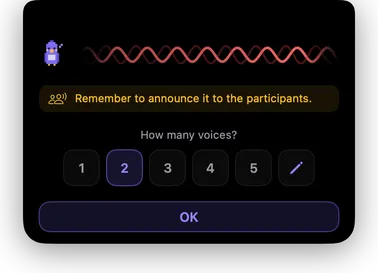
If the meeting is not on your calendar, Keeti asks how many people are going to speak. It also reminds you to tell everyone you are recording: one sentence is enough, and it is mandatory (more on that in chapter 8).
It runs, you hold your meeting
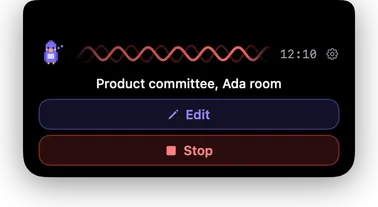
The red wave and the timer show you it is recording. Your Mac does not go to sleep during that time, so you can forget about it.
The Edit button lets you correct the title, the names and the number of people for the whole meeting. It interrupts nothing.
You stop, it works while you do something else
The same keys, or the Stop button. Keeti then starts writing the notes, but you do not have to wait for it: you can close your laptop, head to the next meeting and even start another recording.
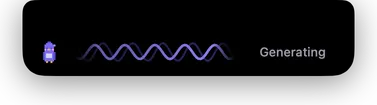
The notes are ready
Allow between thirty seconds and two minutes depending on how long the meeting was. Keeti tells you, and already shows you the action items it spotted. Open notes shows the full, laid-out notes.
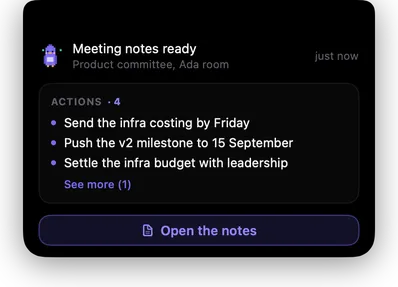
The number of people is the most important thing to check. It is what helps Keeti avoid mixing up the speakers. Three seconds at the start save you ten minutes of proofreading at the end.
4 · Where your notes are filed
In a folder of your own, as ordinary files you can open, send and copy like any other document. Nothing is locked inside the app, and nothing is stored anywhere but with you.
By default, Keeti creates a Meeting notes folder in your Documents, and inside it one
folder per meeting, along the lines of 2026-08-04-product-committee. You can pick another
location in the settings, General page: a folder synced with your colleagues, for instance.
| What you find inside | What it is for |
|---|---|
Compte-rendu.md | The written notes. That is the one you share. |
compte-rendu.html | The same thing, nicer, which opens in your browser. It is what Keeti shows when you click “Open notes”. |
Transcript.md | Everything that was said, word for word, with who said it. Handy for finding an exact sentence or checking a decision. |
There is also a technical folder called .keet, where Keeti keeps the audio and its working
files. You never need to touch it.
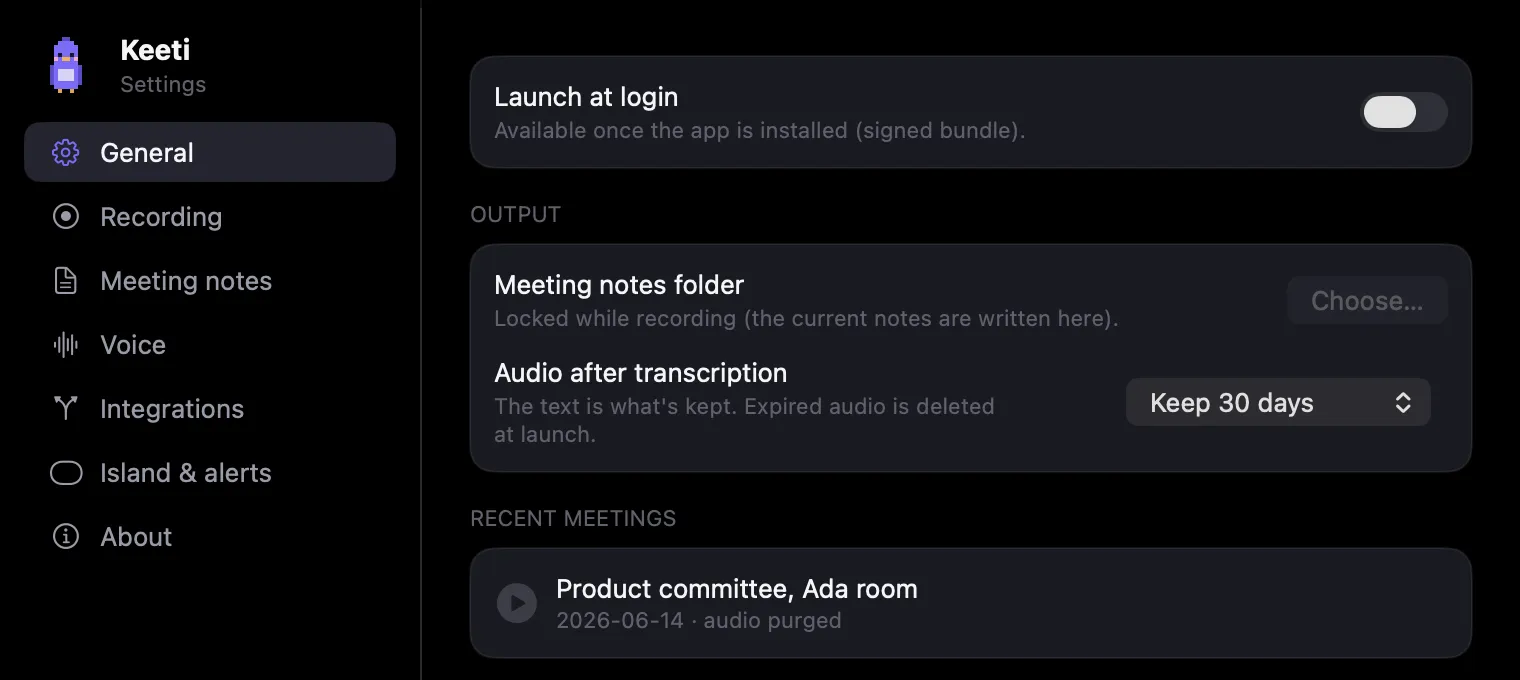
5 · Getting the right name against each sentence
This is the trickiest part, and two habits are enough to get a clean result.
First habit: teach it your voice
In the settings, Voice page, Teach me your voice button. About twenty seconds of reading out loud, once only.
Without it, Keeti has to guess which of the speakers is you, and it often gets it wrong. With it, it recognises you, and because it has one reliable anchor, it places the others better too.
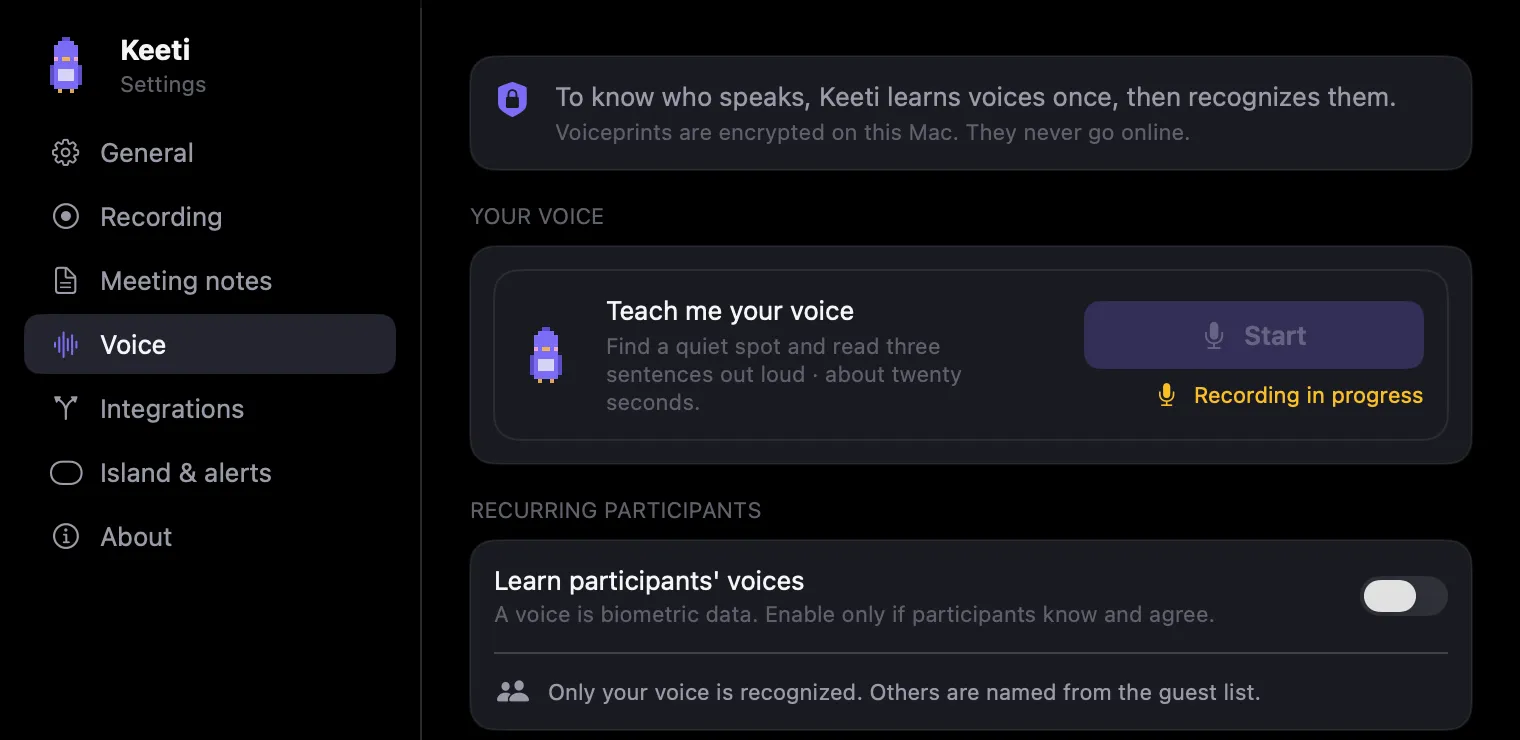
Second habit: count the people the microphone will hear
What Keeti wants to know is the number of voices it is going to hear, not the number of guests on the calendar. The difference matters a great deal as soon as some of the people are remote. A few examples:
| Your situation | The right number |
|---|---|
| There are 4 of you in the room | 4 |
| 3 of you in the room, 2 on video, sound coming out of the speakers | 5, because the remote people can be heard |
| 3 of you in the room, 2 on video, but you are wearing a headset | 3, because Keeti cannot hear the remote people |
| Two guests who never showed up | Do not count them. Announcing someone who is never heard confuses Keeti. |
Announcing more people than there really are is the number one cause of mixed-up names in the notes. When in doubt, simply count the people you can hear speaking.
And if a name is still wrong
On the notes card, each voice has a small ▶ button that plays an excerpt. You recognise the person in two seconds, you correct the name, and the Confirm button rewrites the notes with the right names.
6 · The settings worth your time
There are a lot of them, but you can ignore almost all of them. Here are the ones that really change something.
The dictionary, the most useful of all
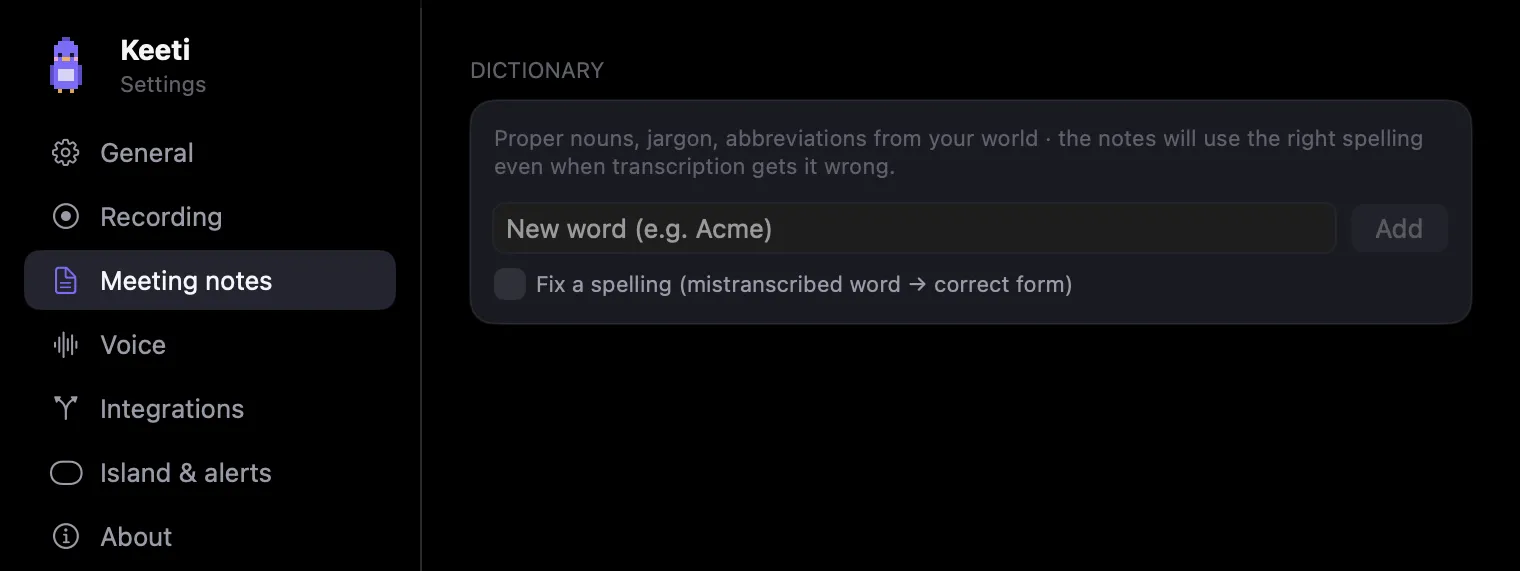
In the settings, Notes page. This is where you write down the words Keeti cannot guess: client names, vocabulary specific to your trade, internal acronyms, names spelled in an unusual way. One word per line.
Five minutes, once, and your proper nouns stop being mangled in every set of notes you produce.
| The others worth a look | Why |
|---|---|
| Voice → Teach me your voice | The thing we covered in chapter 5. If you only do one thing, do that one. |
| General → Notes folder | So your notes land straight in a shared folder rather than in your Documents. |
| General → Audio after transcription | How long Keeti keeps the meeting audio. One month by default, then it is deleted on its own. An hour of meeting weighs about 800 MB, which is heavy: if your disk is small, reduce it. If you like being able to listen back long afterwards, increase it. |
| Notes → Model | The AI model that writes. The default suits the vast majority of meetings. Changing it shows up mostly on your bill with the provider. |
| Recording → Shortcut | If ⌃ ⌥ ⌘ R is already taken by another app, you can pick different keys. |
7 · If something goes wrong
| What you see | What to do |
|---|---|
| The very first meeting will not start, or it hangs for a long time | The first time, Keeti has to download a large file (about 480 MB) that it uses to understand speech. This happens only once. Check you are not tethered to your phone, and let it run for a few minutes. If you are on a filtered corporate network, it may be blocking that download. |
| “Notes failed” | Click Retry. The meeting audio is kept, you lose nothing. If it fails again, check your key in the settings: most often it has expired, or the account with the provider is out of credit. |
| The names are mixed up in the notes | See chapter 5. Nine times out of ten it is one of the same two causes: you have not taught Keeti your voice, or the number of people announced did not match what it actually heard. Correct the names on the card and confirm, and it rewrites the notes. |
| Keeti offers nothing even though I have a meeting | Two possible explanations. Either your calendar is not connected: go to the settings, Integrations page, and check the Calendar or Google Calendar line. Or you are alone in that slot: Keeti offers nothing when you have no guests, so as not to bother you all day. In that case, start it with the keys. |
| I forgot to stop the recording | Keeti notices on its own: when the room empties and it hears nothing more, it asks whether the meeting is over. Answer no and it stops and writes the notes. |
| I quit the app (or my Mac restarted) mid-meeting | The next time you open it, Keeti offers to pick up the recording that was left hanging. It keeps it for two days, then deletes it. Do not leave it too long. |
| The small black window has disappeared, or it gets in the way in full screen | In full screen it hides so as not to catch your clicks by mistake. Push the mouse right to the top of the screen, in the middle, and it comes back. |
| An update is offered | Settings, About page, Check for updates button. Your Mac may ask for your password to install the new version: that is normal. |
8 · What stays with you, and what the law says
The audio of your meetings never leaves your Mac. It is your computer, on its own, that listens and writes down what was said. Then, to write the notes, Keeti sends the text to the AI provider you chose, with your key, and gets the written notes back. The audio stays with you.
Keeti asks you for no account, and the content of your meetings never reaches us: the app only sends anonymous usage measurements. The full detail is on the privacy page.
Telling the attendees is not optional. Recording a conversation without people knowing is a criminal offence in France. One sentence at the start of the meeting is enough to be in the clear: “I'm recording this to write up the notes, is that alright with everyone?”
Keeti can remind you every time: settings, Recording page, Legal section. Leave that option turned on.
What Keeti remembers of your voice is encrypted and stays on your Mac. You can erase all of it whenever you like: settings, Voice page, Forget everything button. It is a real deletion, nothing is kept aside.
A question, an idea, a set of notes that came out wrong? Write to us at tristan@flowwi.fr. Keeti is in beta, and much of what you see in the app comes from the remarks of its earliest users.
Try Keeti
Free during the beta. macOS 14 or later, Apple Silicon Mac.